Adobe Blue Ribbon: What It Means on a Document

If you issue certificates, you have probably had this moment. You send a signed PDF, and within an hour a recipient replies: "Adobe says there is a problem with the signature. Is my certificate fake?"
That small blue ribbon, or its absence, decides whether someone trusts your document. A verified digital signature is a cryptographic seal that proves who signed a PDF and that no one changed it afterward. When Adobe Acrobat accepts that seal, it adds a blue ribbon across the top of the file. This guide explains what the ribbon means, why you might be unable to see the blue ribbon, and what smarter options exist for issuers.
What The Blue Ribbon Means
The blue ribbon is Adobe's shorthand for "this document is trustworthy." As GlobalSign explains, a certified document shows a ribbon listing the signer's name, their organization, and the certificate issuer across the top of the page. Adobe covers the same signal in its guide to using certified digital signatures to increase trust. Here is what a reader actually sees:

In short, it tells a reader three things: who signed it, that the file has not changed since signing, and that the source traces back to a trusted certificate authority. For an issuer, that is the goal: the recipient sees your name at the top and trusts the file.
Certified Versus Approval Signatures
People mix up Adobe's two trust signals, so let's clear it up. The blue ribbon appears on a certified document: the author certifies the PDF before it goes out, and can lock down what others may change later. The green check mark appears next to a valid approval signature, the everyday "I approve this" sign-off. Both mean the signature validated correctly. The ribbon just signals a stronger, document-wide certification.
How Adobe Acrobat Verifies A PDF
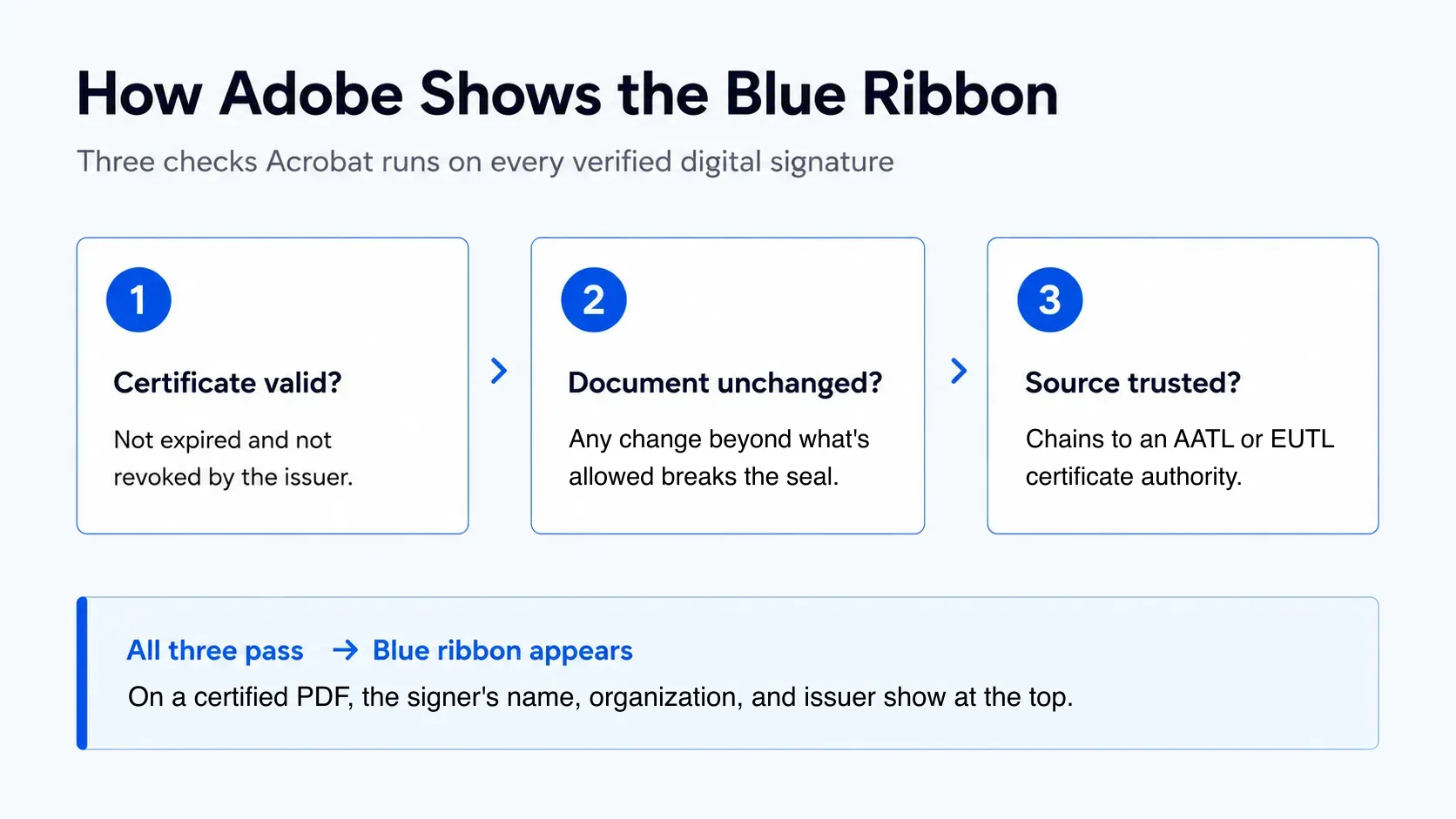
Every time you open the file, Adobe Acrobat runs a quick check, asking three questions:
- Is the certificate still valid? Has it expired or been revoked?
- Have changes stayed within what the author allowed? Certifying can permit form filling yet block everything else.
- Does the certificate chain to a trusted source? If it links to a trusted root, the signature is trusted automatically.
That third question is the decisive one, and it is where trusted lists come in.
Unable To See The Blue Ribbon?
A yellow warning triangle or "validity unknown" almost never means a document is fake. As Adobe's guide on validating signatures makes clear, it usually means the signer's certificate is not yet trusted on that computer. A learner named Leslie once replied to a batch of my course certificates in a panic over this exact warning; her certificate was fine, her copy of Acrobat simply did not trust the issuer yet.
Common reasons you are unable to see the blue ribbon:
- The certificate does not chain to a trusted root, so Adobe holds the ribbon back.
- The trust chain has a gap and reports "certificate not trusted."
- You are on an outdated version of Acrobat, or viewing in a mobile app or third-party reader that handles trust differently from the desktop application.
Updating the application usually lets the signature validate on its own.
How To Validate In Acrobat
Clearing the warning takes seconds. Here is a version of Adobe's own steps you can paste into a reply to any worried recipient:
- 1
Right-click the signature
Or the yellow "validity unknown" icon on the document.
- 2
Choose "Validate Signature"
Then open Signature Properties.
- 3
Show the signer's certificate
Open the details to see the issuer and trust chain.
- 4
Add to Trusted Certificates
On the Trust tab. The signature validates and the ribbon becomes visible.
Trust Lists: AATL And EUTL
So where does "trusted" come from? Adobe runs two big trust programs. The Adobe Approved Trust List (AATL) is a set of certificate authorities Adobe vets, and any signature that chains to an AATL member is trusted automatically. In Europe, Adobe also recognizes the EU Trusted Lists (EUTL), the equivalent built around eIDAS qualified trust service providers. Chain to either, and the blue ribbon appears without the recipient lifting a finger.
There is a catch: getting on the trusted side is expensive. A document-signing certificate from an AATL or EUTL provider typically costs hundreds of dollars per year, and the bill is annually recurring, so the ribbon only keeps appearing while you keep paying to renew. For a large enterprise signing contracts all day, that math works. For a trainer, coach, or small academy issuing certificates, paying a yearly premium just to calm support tickets is hard to justify. Adobe documents both programs on adobe.com, but neither makes verification simple for your recipients.
A Simpler Way To Verify
This is where a credentialing platform like Wauld helps. Instead of asking recipients to decode Adobe's trust settings, every certificate carries a unique verification link. Anyone can click it or scan a QR code and confirm the credential in seconds, on any device.
Wauld runs its own three-step check: it confirms the recipient's identity, the issuer's legitimacy, and the certificate's authenticity through a unique ID. Credentials also follow the Open Badges 3.0 standard, so they stay verifiable across platforms, not just inside one PDF reader. The recipient still sees a clear "verified" state and your name as the issuer, which is what the blue ribbon promises, without the setup steps or the annual certificate bill. It is the same shift that lets verifiable digital diplomas stop fake certificates.
Why Trainers Choose Wauld
Wauld handles the whole credential lifecycle in one place, so you design, issue, track, and verify without juggling tools:
- Design in minutes from 1,200+ certificate and badge templates, then add your logo, colors, signature, and QR code.
- Issue at scale by uploading a CSV to send a whole cohort at once, or schedule delivery for later.
- Track real engagement, seeing who opens, downloads, and shares each certificate, plus every verification.
- Let recipients show it off by keeping credentials in a personal wallet and adding them to LinkedIn in one click.
There is no software for recipients to configure and no onboarding fee to start, which means fewer "is this real?" emails and more graduates who proudly share your work.
Conclusion
The Adobe blue ribbon is a useful trust signal: a verified digital signature is present, the signer is known, and the document has not been touched. A missing ribbon usually means a trust setting, not a forgery. Your job as an issuer is to make trust effortless, and one-click verification means most recipients never have to think about it.
Ready to issue certificates that verify in one click?
Design them with your branding, send them to a whole cohort, and give every recipient a credential that proves itself in seconds, with no Adobe setup required.
FAQs on Adobe's Blue Ribbon
- What does the blue ribbon in Adobe mean? It means a document is certified and carries a verified digital signature. It confirms the signer's identity, shows the document has not changed since signing, and lists the certificate issuer at the top of the page.
- Why am I unable to see the blue ribbon on a signed PDF? Usually the signer's certificate is not yet trusted on your computer, not that the document is fake. Adding the signer to your trusted certificates, or updating Acrobat, makes the signature validate and the ribbon becomes visible.
- How do I validate a signature in Adobe Acrobat? Right-click the signature, choose "Validate Signature," then open Signature Properties and "Show Signer's Certificate." On the Trust tab, select "Add to Trusted Certificates," and the signature shows as valid.
- What are the AATL and EUTL, and do they cost money? They are the trust programs Adobe uses to decide which certificates to trust automatically: the Adobe Approved Trust List and, in Europe, the EU Trusted Lists. Getting on the trusted side means buying a document-signing certificate from a listed provider, which typically costs hundreds of dollars per year and renews annually.
- Are verifiable certificates better than signed PDFs for course issuers? For most trainers, yes. Verifiable certificates confirm authenticity through a link or QR code, with no reader settings to configure, so recipients and employers can validate them in seconds on any device.